Correcting the words
Open a transcript and press Edit. Make your changes, then press Save. On a phone, Edit is under More Actions, the three dots.
Saving never writes over what you said. Your correction becomes the transcript’s current version, and the words as they were captured stay beside it.
Unsure words
Some words are harder to hear than others, and the app marks the ones it was least sure of. Their count stands just above the words, such as “3 unsure words”. Press it to underline them, so you can check those first.
A conversation
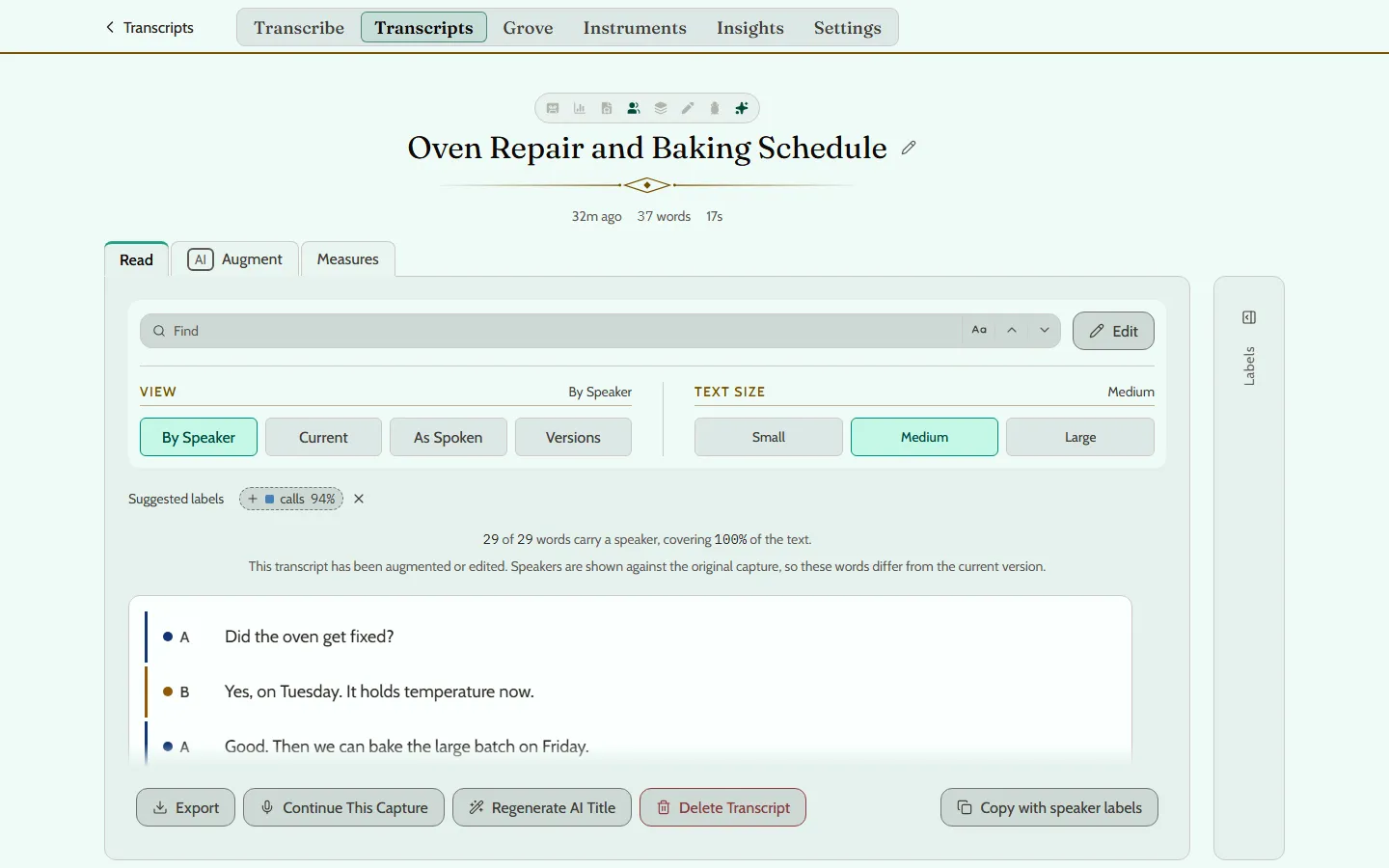
A recording with more than one speaker opens on By Speaker, with each speaker’s words marked. Editing there corrects each speaker’s turn in place.
Going back to what you said
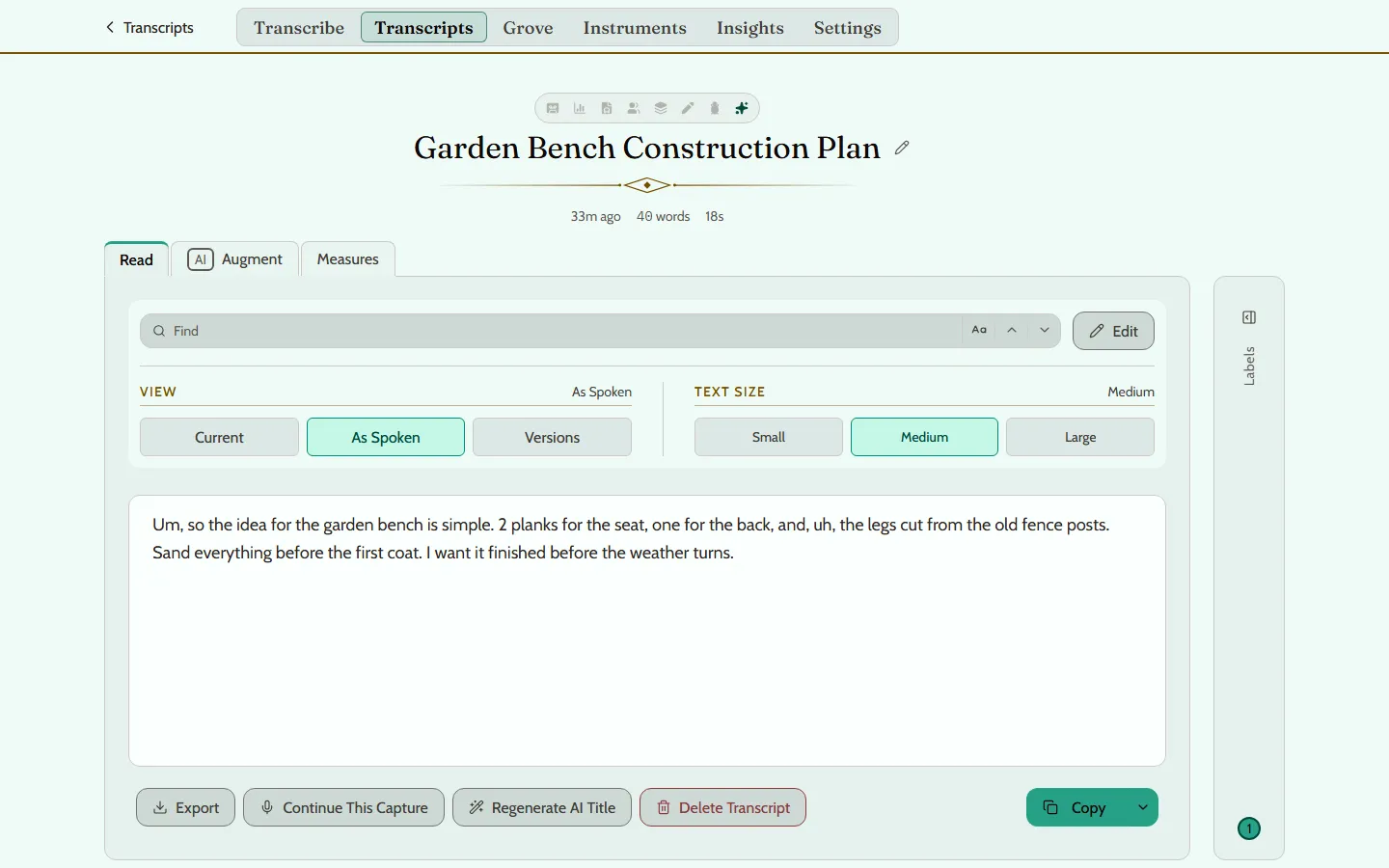
Just above the words, the transcript’s views stand in a row.
- Current is the version in use: your last saved edit or accepted augmentation.
- As Spoken is what you said, as it was captured. It appears once a later version differs from it.
- Versions lists every version the transcript has had.
Adding more to it
Continue records more speech into the same transcript. On Transcribe it is under More Actions once a transcript is ready. From an open transcript, it is called Continue This Capture.