Keep the screen on
When you record on a phone, keep Vociferous in front, with the screen on, until you press Finish.
If the screen turns off, or you switch to another app, the phone cuts off the microphone. Nothing you say while it is away is recorded. That is how phone browsers behave, and Vociferous cannot switch it off.
While you record, the app asks the phone to keep the screen awake, so you should not need to touch it. If your browser cannot do that, the app says “Keep the screen on: this browser can’t”, and then it is up to you. Leave the power button alone and let messages wait.
The first time you record on a phone, the app reminds you of this.
This has been seen on an Android phone. On an iPhone, assume the same.
If the screen did go off
When you come back, the app tells you one of two things.
- “Part of this take wasn’t recorded”, with how long the break was. The recording is still going. What you said during the break is missing, so say that part again and carry on.
- “The microphone stopped while this page was in the background.” The recording cannot go on. Everything recorded before it stopped is kept. Press Finish to transcribe it.
If the app noticed nothing, press Finish and read the transcript. Anything you said after the screen went dark is probably missing.
Adding to a transcript
If you need another app partway through, press Finish first. You can add more to the same transcript afterwards with Continue. On Transcribe, once the transcript is ready, Continue is under More Actions, the three dots.
Anything long
For anything long, use your phone’s own voice recorder app. It keeps going with the screen off. When you are done, open Vociferous, press Import a File, choose the recording, and press Transcribe.
What a phone leaves to a computer
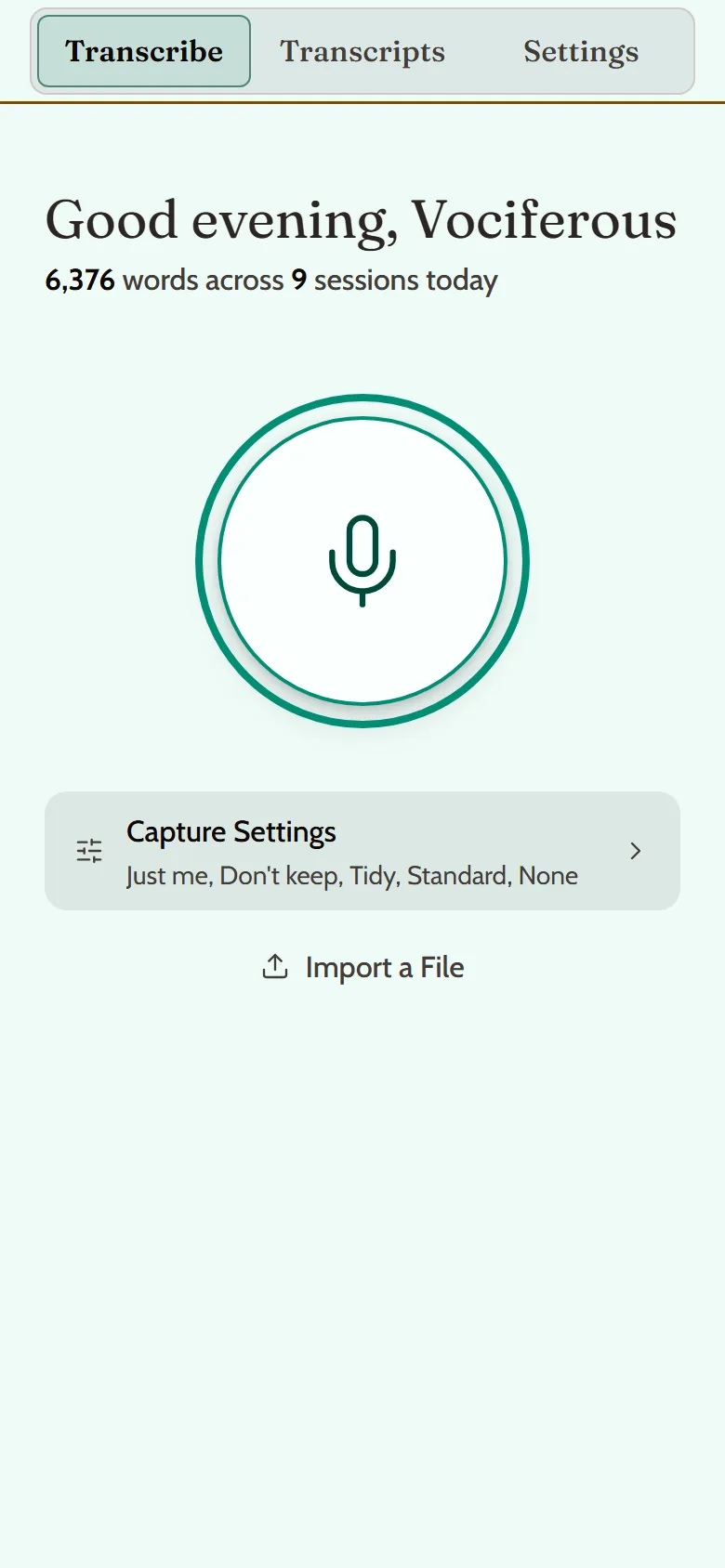
A phone is a companion to the app on a computer. Its bar along the top holds Transcribe, Transcripts and Settings, and a sideways swipe moves between them.
- Grove, Instruments and Insights open on a computer.
- Settings on a phone has Preferences, Capture, Plan & Usage, Account and About. Augmentation Defaults, Labels and Data & Privacy open on a computer.
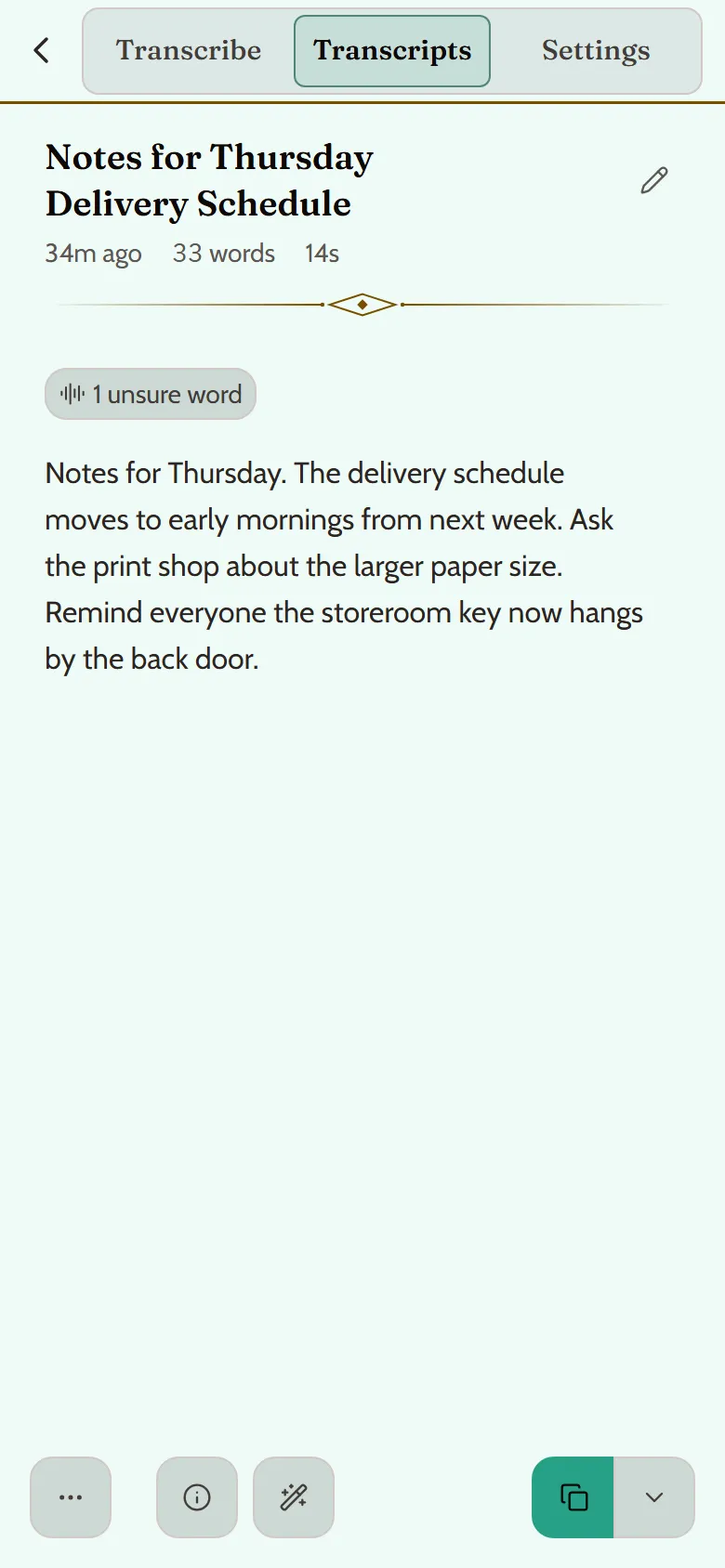
- An open transcript has four buttons at its foot: More Actions (the three dots), Details (the i), Augment (the wand) and Copy. Everything else is under More Actions. Swipe sideways to move between its tabs.