Getting around
On a computer, the pages are listed along the top: Transcribe, Transcripts, Grove, Instruments, Insights and Settings.
On a phone, the bar along the top holds Transcribe, Transcripts and Settings, and a sideways swipe moves between them. Grove, Instruments and Insights are laid out for a bigger screen, so they open on a computer.
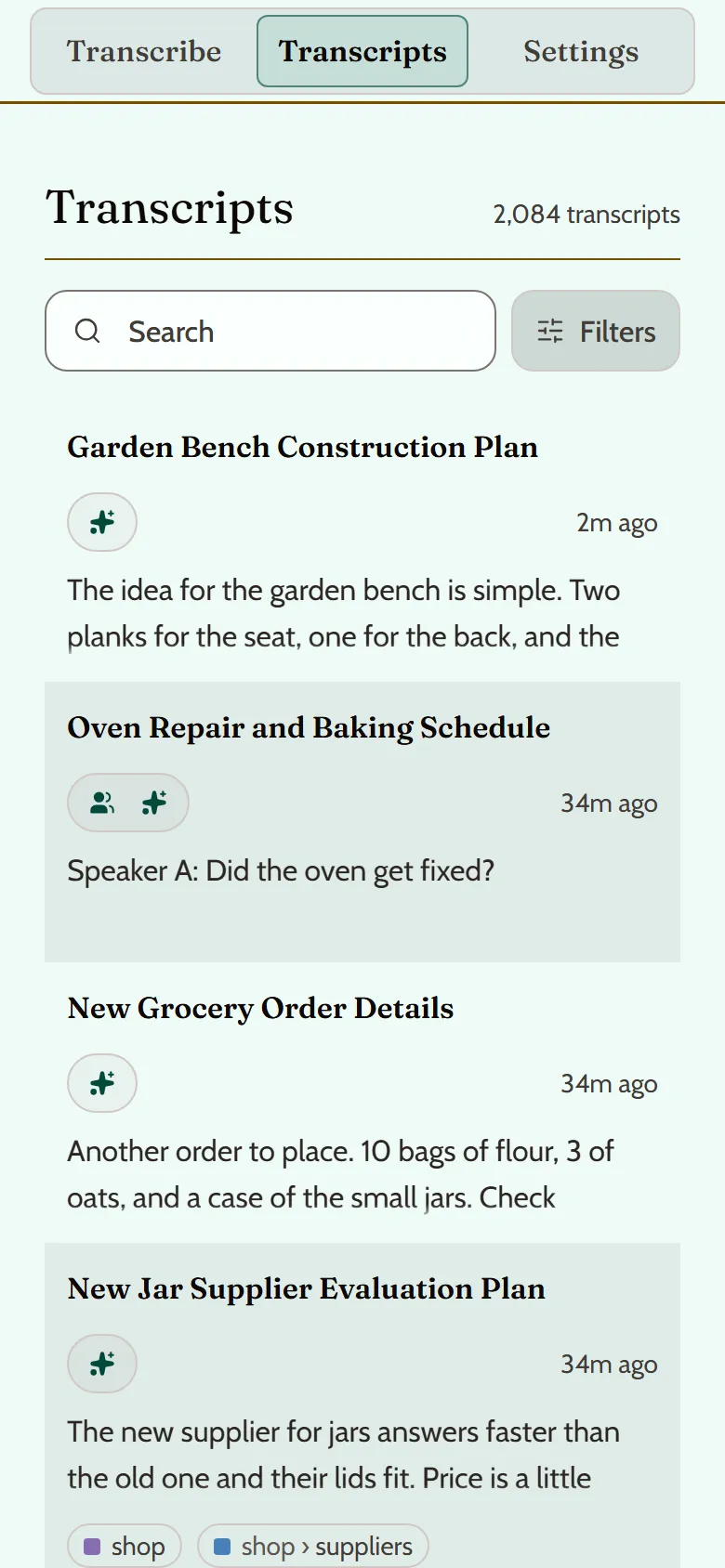
The Transcripts page
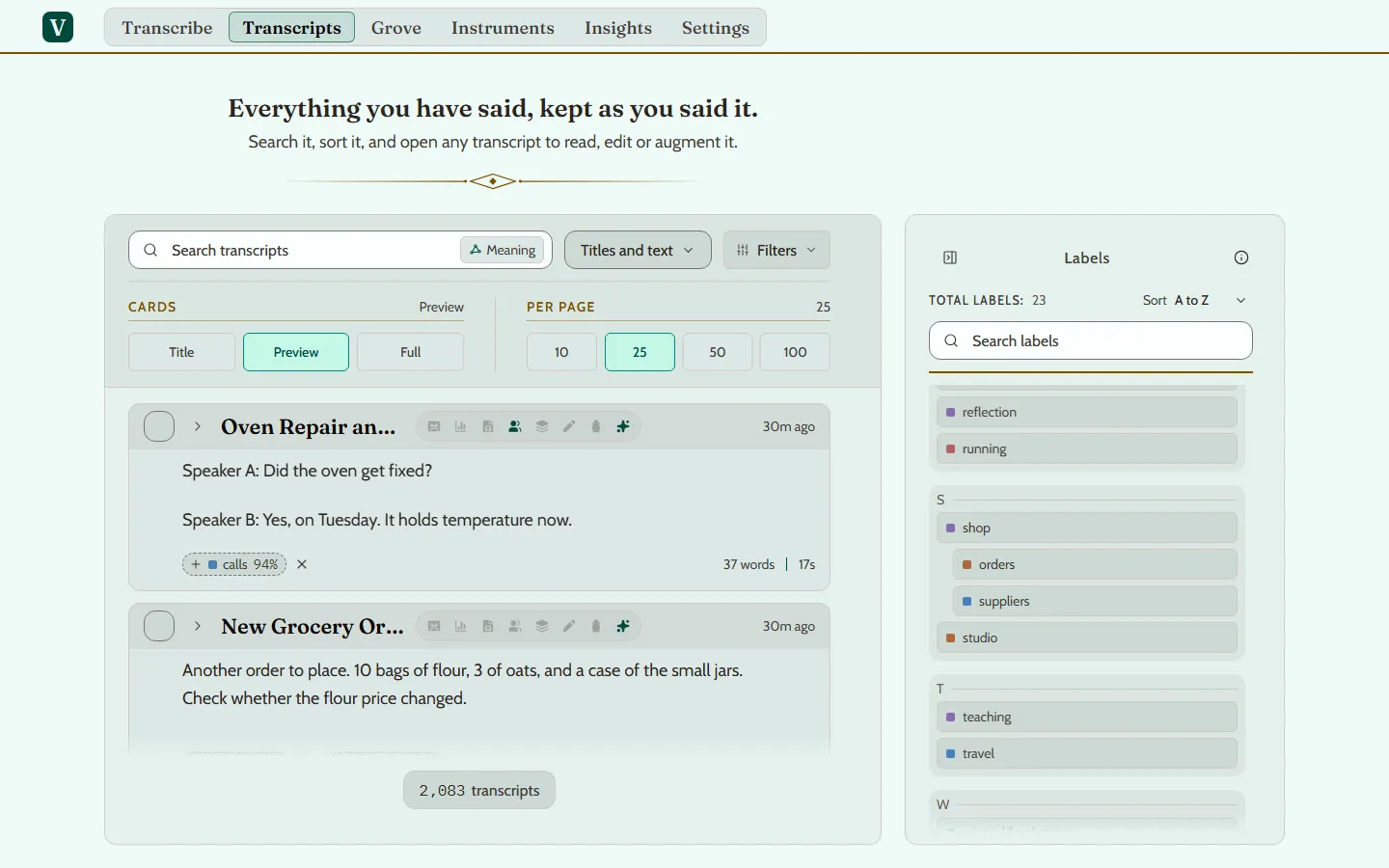
Everything you record or import lands on the Transcripts page, newest first. The search box there finds transcripts by the words in them.
- On a computer, click a transcript once to select it and double-click to open it.
- On a phone, tap a transcript to open it.
Reading
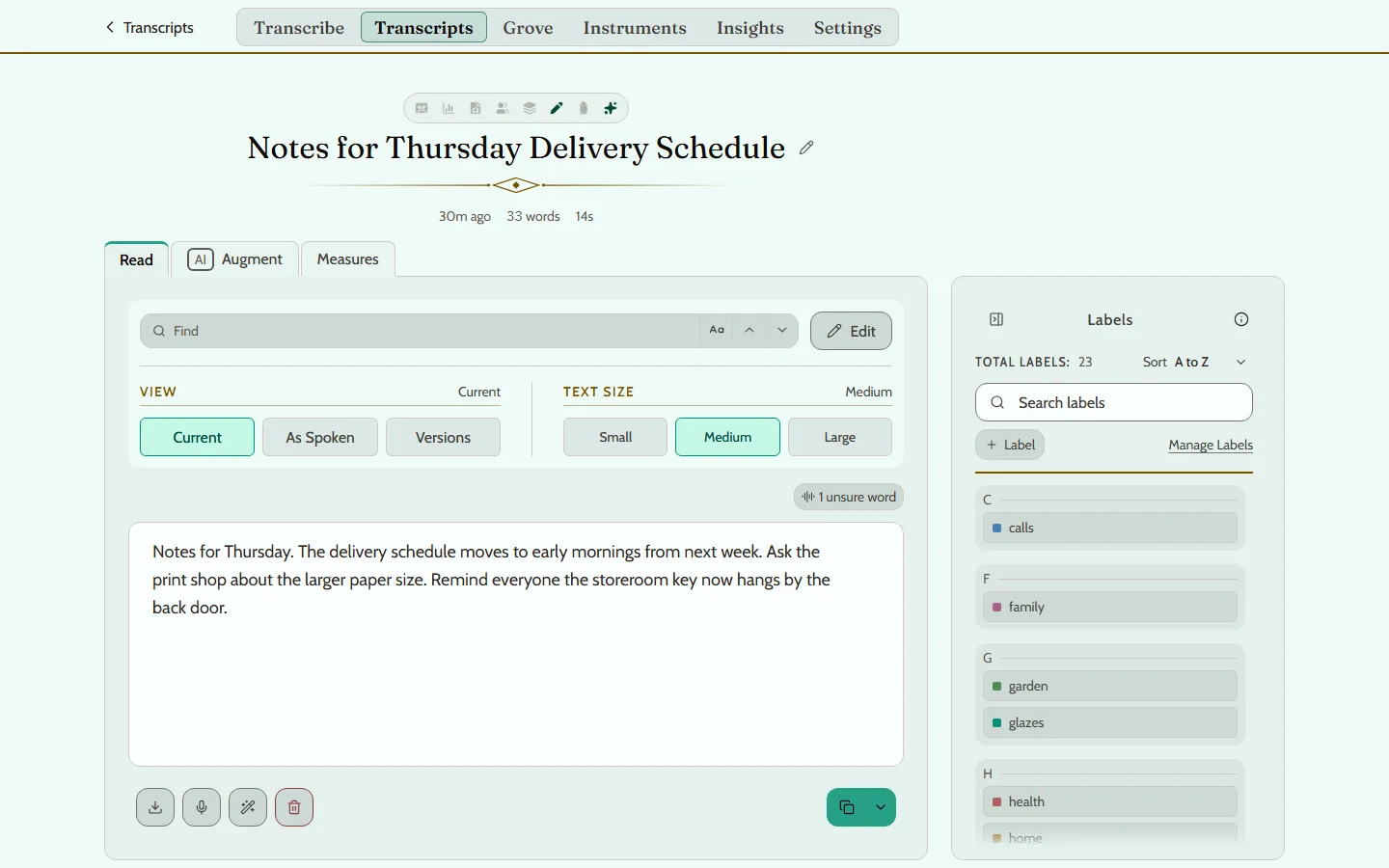
An open transcript starts on Read. What you see first is its current version, which is the tidied one if the transcript was augmented.
To see what you actually said, press As Spoken, just above the words. Versions lists every version the transcript has had.
A recording with more than one speaker opens on By Speaker, with each speaker’s words marked.
Copying
Press Copy to copy the words on screen. On a computer it is at the foot of the words, at the right; the small arrow beside it has other formats. On a phone it is the button at the right of the transcript’s foot.
Fixing a word
To correct anything that was misheard, press Edit, make the change, and save it. On a phone, Edit is under More Actions, the three dots.
Your first transcript is kept as it was captured. A correction is saved as a new version beside it.