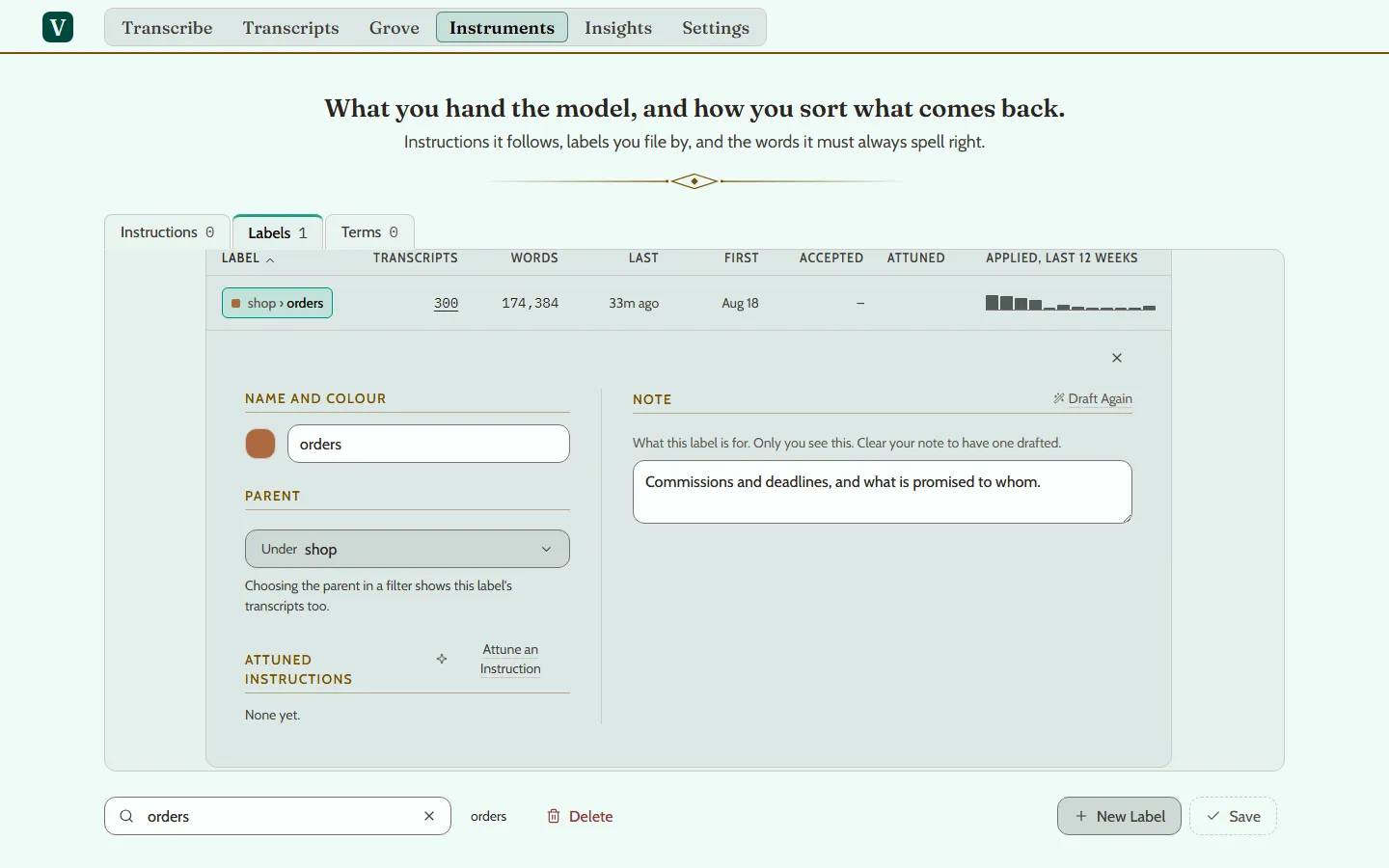
What a label is
A label is a word you put on a transcript, such as “work” or “ideas”, so you can find it later. A transcript can carry several.
A label can sit under another label, so “shop” can hold “orders” and “suppliers”.
Putting a label on a transcript
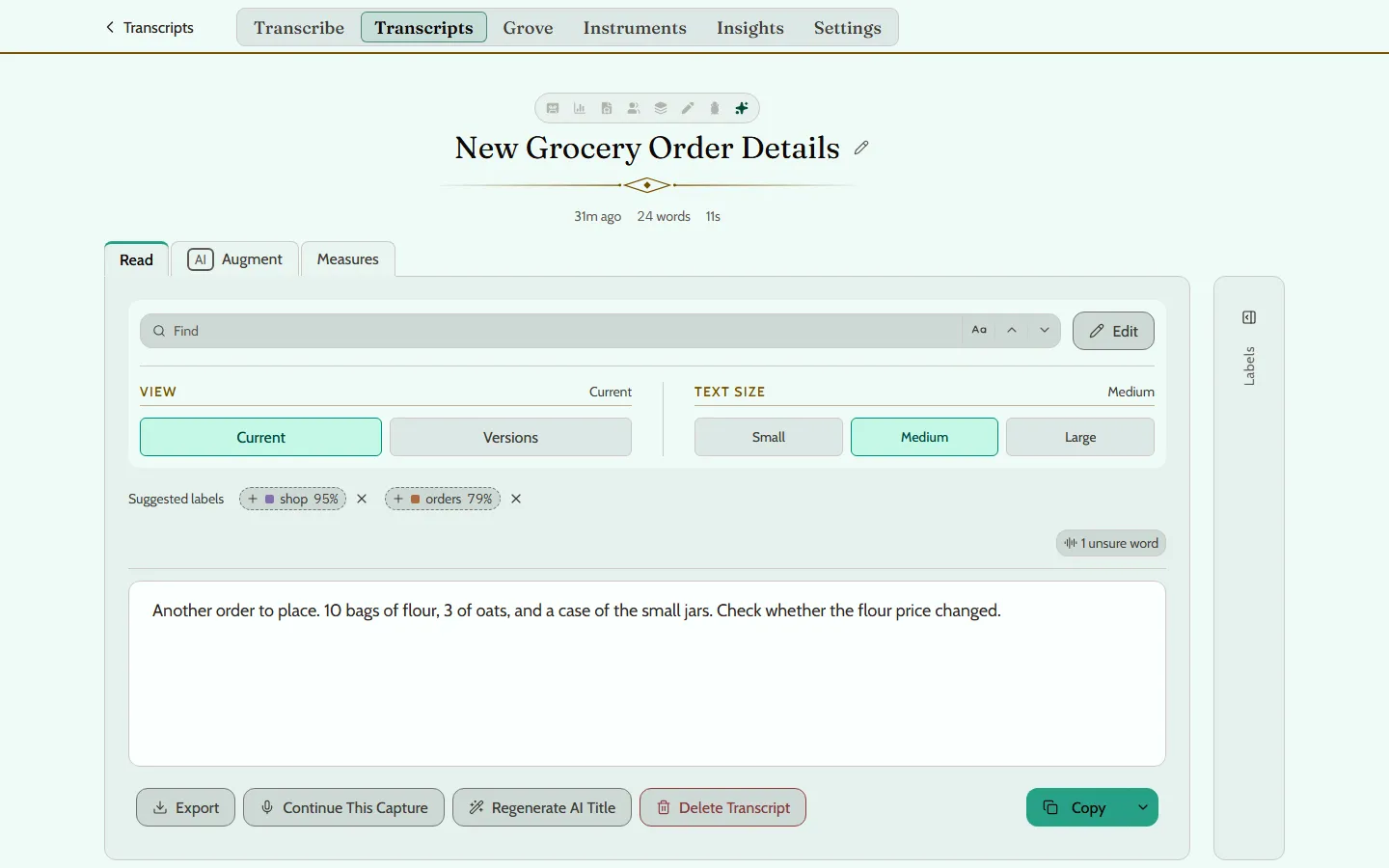
- On a computer, open a transcript. Your labels are in the rail at the right of the words. If the rail is folded to a narrow strip, press the small button at its top to open it. Press a label to put it on or take it off, or press + Label to make a new one.
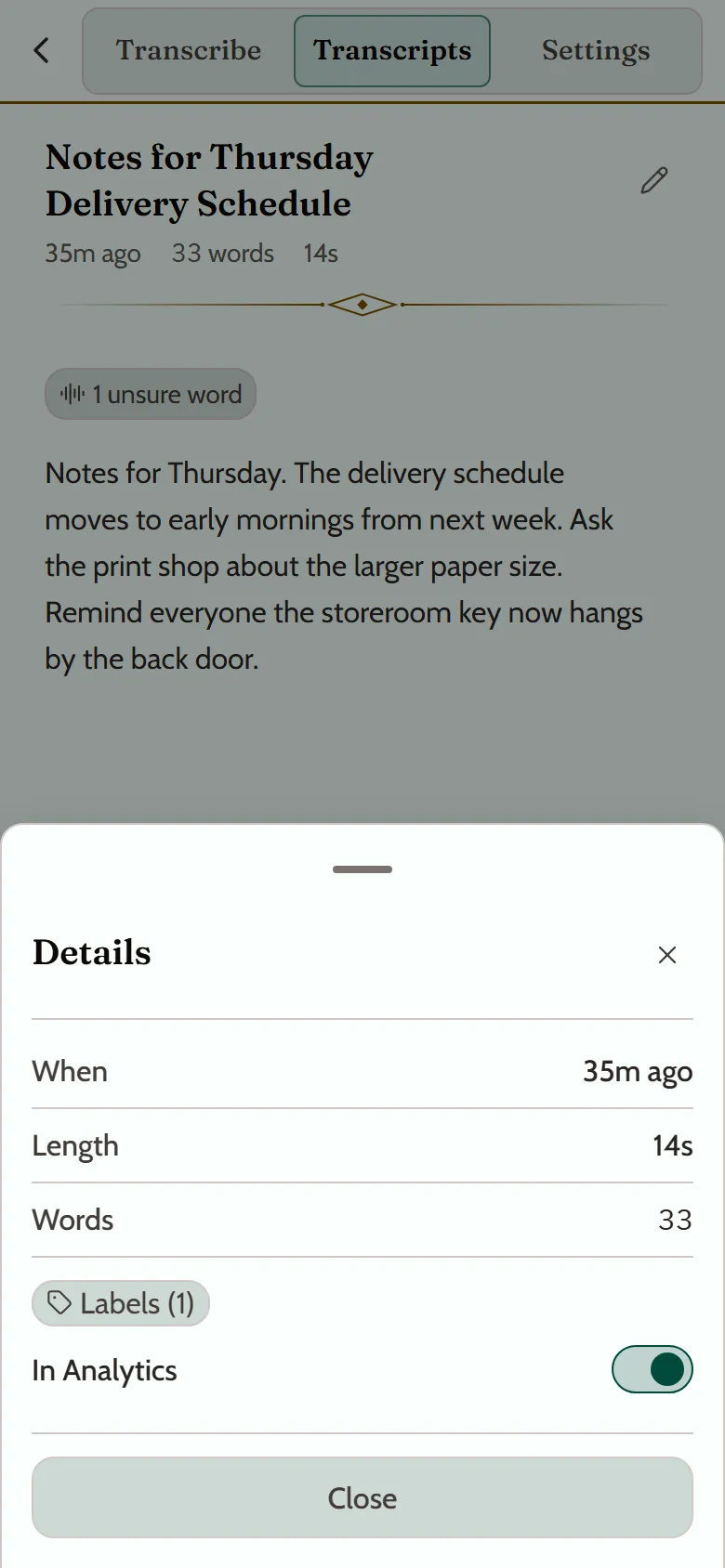
- On a phone, open a transcript, press Details at its foot (the button marked i), and then press Labels.
Finding transcripts by label
On the Transcripts page, your labels are in the rail at the right on a computer, and under Filters on a phone.
Press a label once to see only the transcripts that carry it. Press it again to hide them. Press it once more to let it go.
Choosing a label that holds other labels shows their transcripts too.
Suggested labels
Vociferous can offer labels for a transcript, drawn from how you have labelled similar ones. A suggestion appears as a label with a percentage beside it, which is how sure Vociferous is. Press it to apply it, or dismiss it.
To make suggestions, the text of your transcripts goes to an embedding model at Google, which turns it into numbers and writes nothing. Your words names every service that handles what you say.
To stop this, open Settings on a computer, choose Labels, and turn off Label suggestions and search by meaning.
Managing your labels
Renaming a label, changing its colour, deleting it, and placing it under another are done in Instruments, under Labels, on a computer. A label’s Under field names the label it sits under. A label under another cannot hold labels of its own. Manage Labels, in the rail, opens the same place.