Recording
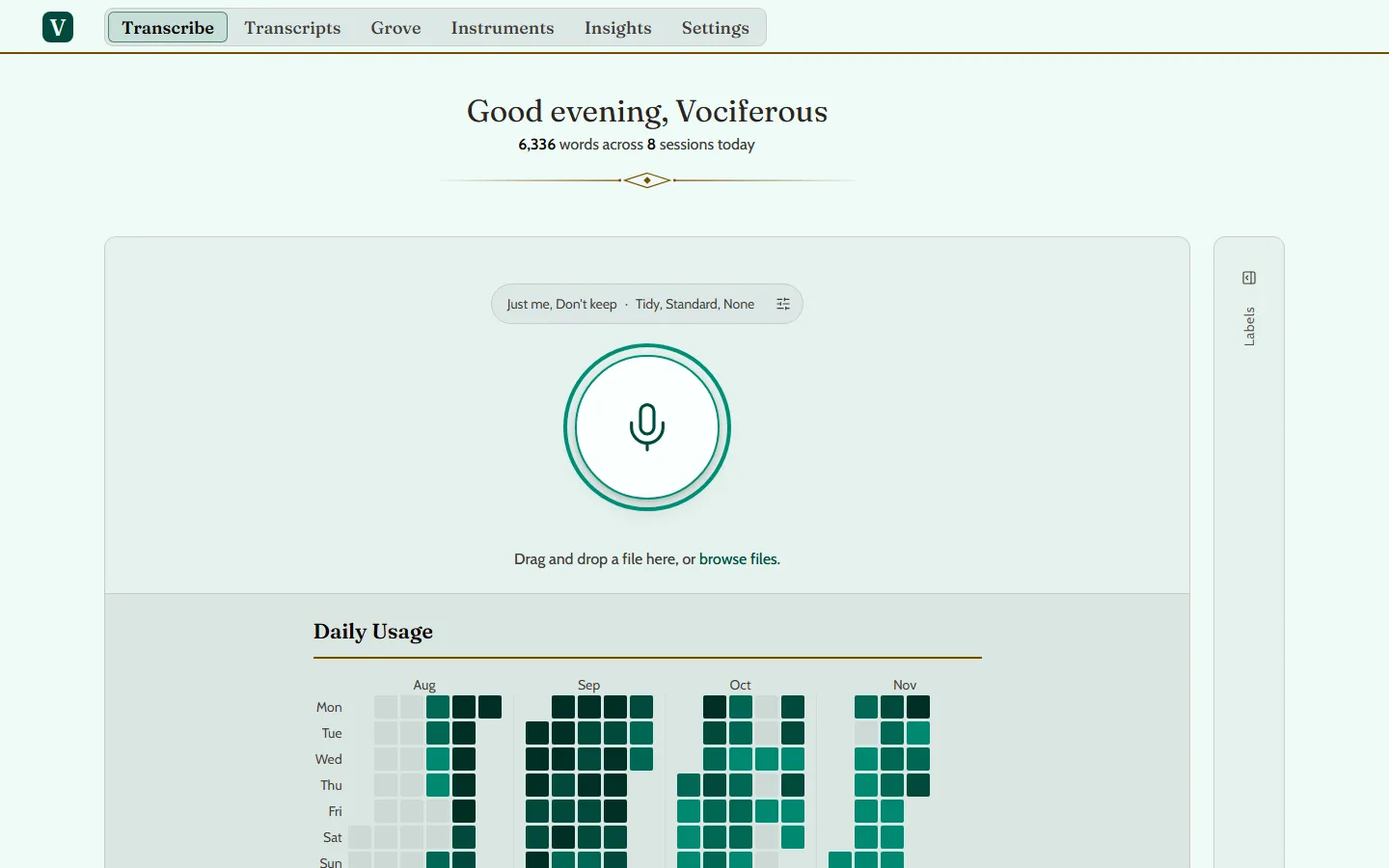
- Go to Transcribe and press the large microphone button.
- The first time, your browser asks to use the microphone. Allow it.
- Talk. If you need a moment, press Pause. Paused time costs nothing.
- Press Finish, the large button with a tick. When the words are ready, your transcript appears on the same page.
Cancel, the button with a bin, throws the take away, and nothing is kept.
On a computer, F9 starts and finishes a recording and F8 pauses it. You can change those keys in Settings, under Preferences, in Recording Hotkeys.
Importing a recording
If you already have a recording, bring it in on Transcribe.
- On a computer, drag the file onto the page, or press browse files, just below the microphone button, and choose it.
- On a phone, press Import a File.
Then press Transcribe.
An audio file can be up to 50 MB. If yours is larger, Shrink a large recording shows how to save it smaller.
What happens when you finish
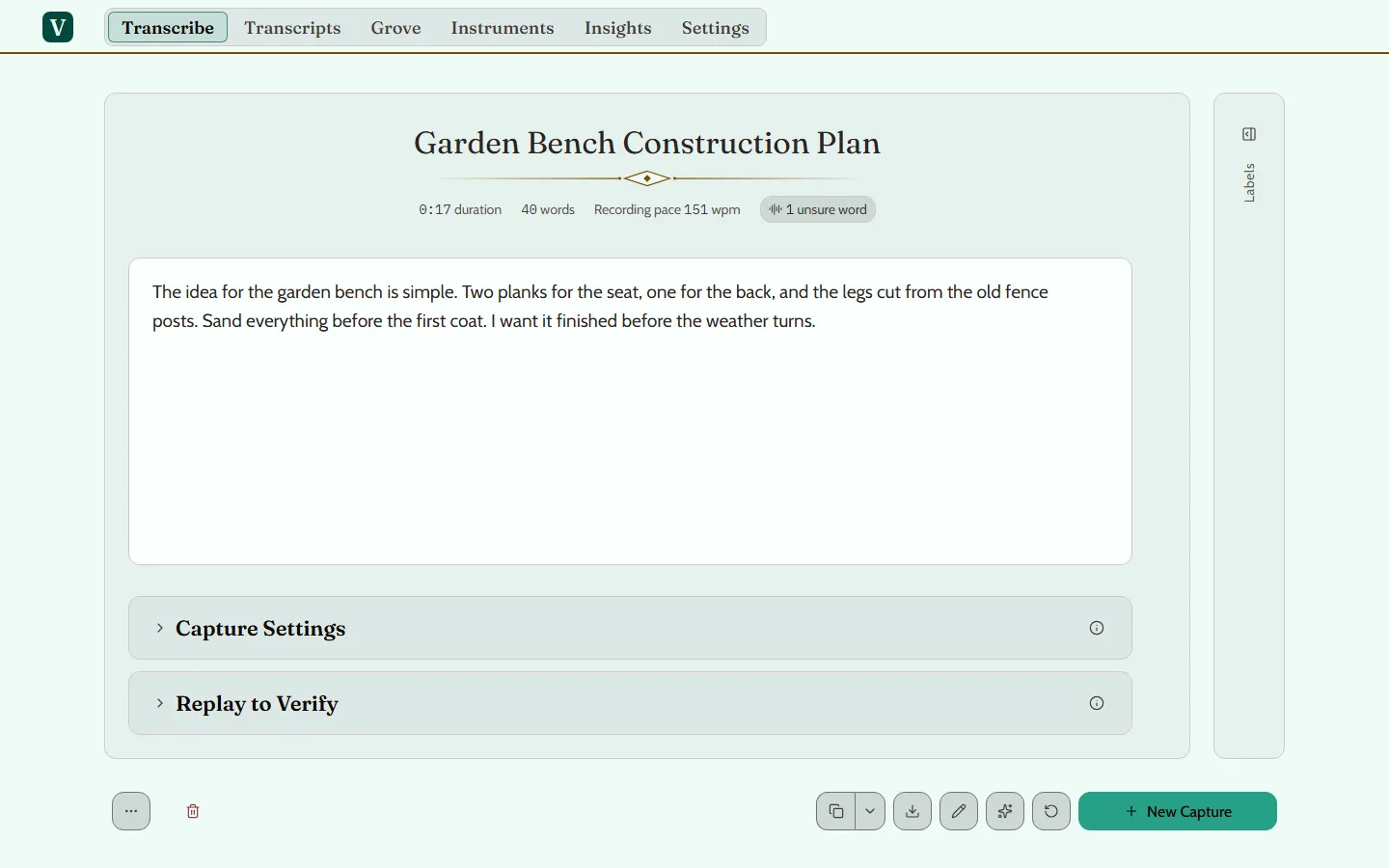
Unless you change it, three things happen to each new transcript.
- It is given a title.
- It is augmented: a tidied version is written beside your words, with the fillers and false starts taken out and the grammar fixed. This starts out set to Tidy.
- The app tries to copy the text, so you can paste it straight into an email or a document.
Your original transcript is kept as it was first written down, every “um” and “uh” included. The tidied version never replaces them.
Augment uses a language model, and it can get things wrong. Read the result before you send it anywhere.
Turning any of it off
All three are switches in Settings. Augment automatically is under Augmentation Defaults, which opens on a computer. Title automatically and Copy automatically are under Preferences.